
Put AI to work
on your Android.
Look things up across apps, compare information, and work through a list. Schedule the jobs you repeat. Check results on your computer, or send a task through WeChat and view or control your connected phone remotely.
Windows or Mac, connected to Android. Free desktop client; bring your own model. Model services may charge separately.
A task you could give it
Organize the trip notes in my saved collection by place, area, and activity. Mark any details the posts do not give.
- Give it a listItems, requirements, and apps
- Work through itLook up, compare, organize, or act
- Check the resultsReview the record and give the next instruction
Give it the list.
Review the results.
The information you need is often spread across several apps. Tell KAKABAKA what to look for and how to handle each item. Keep the results together in the conversation or a file.
Collect and organize
Find specified content, use the fields you request, and keep missing details visible.
Compare and filter
Specify the product model, specifications, or other criteria, then bring matching results together.
Work through a list
Provide the items and steps. Review each result and add instructions when needed.
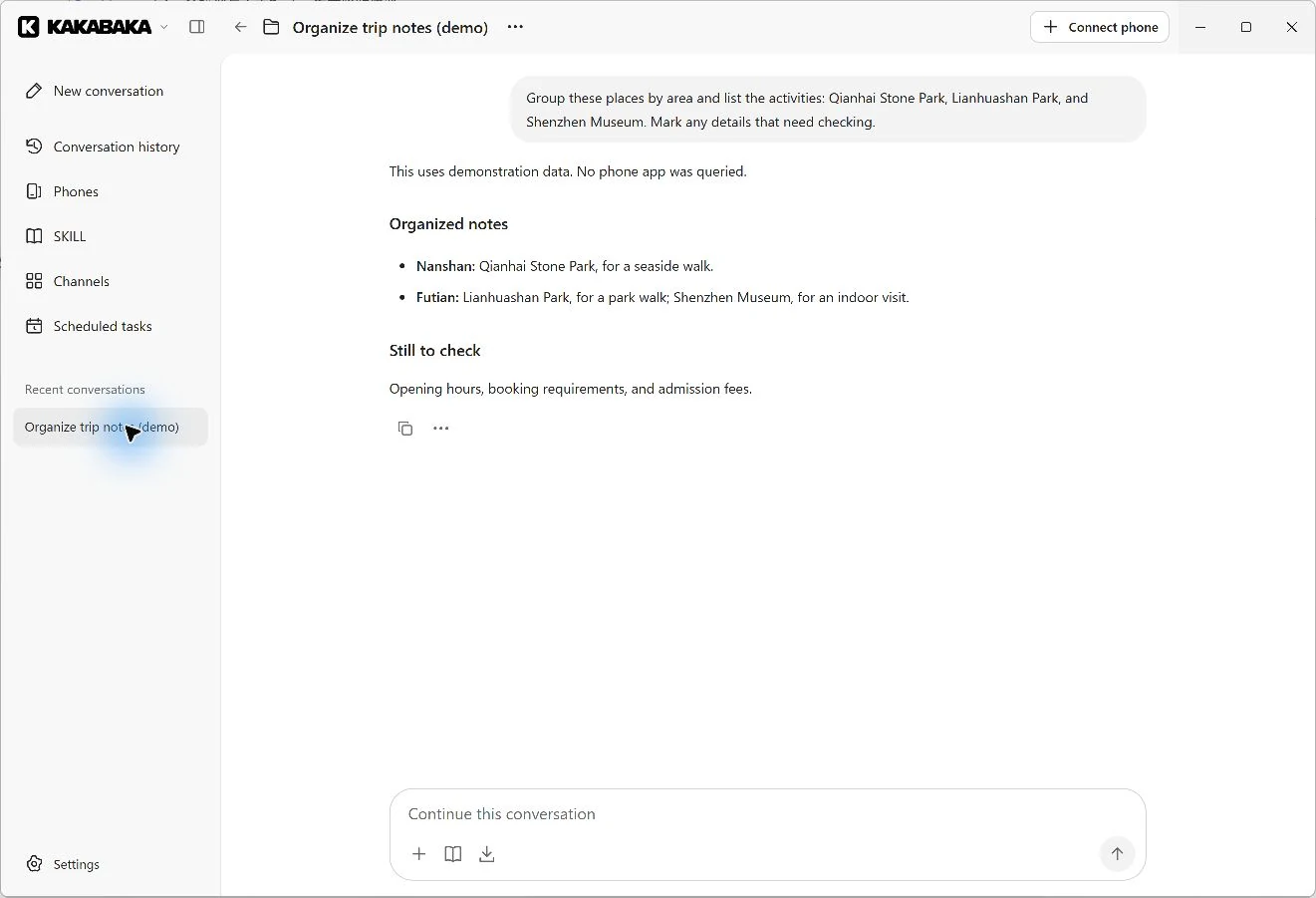
- Nanshan
- Qianhai Stone Park, for a seaside walk.
- Futian
- Lianhuashan Park, for a park walk; Shenzhen Museum, for an indoor visit.
Still to check: opening hours, booking requirements, and admission fees.
View the full desktop screenshotAway from your desk?
You can still step in.
Start a task or add instructions in an authorized WeChat conversation. Ask for a phone-viewing link, then open it in a browser to see the Android connected to your computer.
How remote viewing and control work- Send a task in WeChat
- View the phone in a browser
- Take control when needed
- Finish and hand it back
Watch the phone
Links open in view-only mode. AI can keep working.
Take control
Choose Take over. Automatic actions pause before you can operate the phone.
Hand it back
Choose Done, continue task to return control. A check-in issue can end the run; resolve it, then run the check again.
Requires your own configured HTTPS remote-access service, a running computer and desktop app, and a connected Android. Some networks, VPNs, or firewalls may block a direct connection.
Compare prices.
Keep the conditions clear.
Product model, quantity, and offer conditions can change what a price means. Specify the items and apps, have the assistant record the visible prices and conditions, then check the comparison.
After checking the workflow, you can schedule a daily follow-up and compare its records with the previous run.
See example tasks and how to prepare themLook up this product list in the shopping apps I specify. Match the model and specification. Record the listed price, offer conditions, and time. Leave missing items blank.
A workflow example to configure and test. The preview has no built-in product watchlist, price charts, or price-drop alerts.
Set a time for
the jobs you repeat.
Schedule check-ins and other everyday jobs once, daily, on weekdays, or weekly. KAKABAKA runs the task on your connected phone and keeps the outcome.
Keep the computer awake and the app, model, and required phone available. Test each target app’s check-in flow separately.
Every day at 9 am, open the specified app on this phone, check whether today’s check-in is done, complete it if needed, and record the result.
- Checked in
- Verified against the app screen
- Already done
- No repeat submission
- Needs attention
- Login, verification, or an uncertain result
Keep track of
what happened.
History and the workspace are stored locally. Your model may receive messages, relevant history, attachments, and required phone screens or interface text. Read the data-sharing information before enabling it.
Read the privacy policyExecution records
Review the conversation, phone actions, and results. Ask follow-up questions after a task ends.
Further instructions
Add detail while a task is running. Use the same conversation to change the scope or criteria.
Pause and stop
Pause or cancel a schedule, or stop a running task. Actions already completed remain in place.
Your next step
Read the question and check the current screen before adding information, taking control, or ending the task.
Keep the methods that work.
Save a tested procedure as a skill for later tasks. Use the local workspace when a task needs files. Saved local scripts can also run on a schedule.
Reusable procedures
Create or import skills. Select one for a task or let the model match it.
Files and scripts
Use a persistent workspace and bundled Node to process files and return attachments.
Models and channels
Configure a compatible model and your own chat accounts or bots. Authorize the conversations you need.
Local script schedules run without another model call or a phone. Phone tasks still need the required model and device.
Start with a result you can check.
Bring a computer, an Android you are authorized to operate, and a compatible model. Finish one small task before moving on to batches or repeat work.
Windows
Windows 11 · x64
Microsoft Store release in preparation
Mac
macOS 15 or later · Apple silicon
Preview · direct distribution
Public installer links are not available yet. Contact us to request a test build.
Before you begin.
Does it run on my computer?
Yes. KAKABAKA is a Windows or Mac app that operates Android through an authorized connection. Scheduled work and remote access need the computer and app to keep running.
Can I switch on price monitoring?
You need to configure and test the lookup and follow-up workflow in the chosen apps. The preview has no built-in product watchlist, price charts, or price-drop alerts. The price comparison on this page is an example request.
Can it operate an iPhone?
Phone automation currently supports Android. The Mac app also connects to Android; it does not provide iPhone automation.
What does it cost?
The desktop client is free. Your model and other connected services may charge separately, with their own fees and usage limits.
How do I use it away from my desk?
After configuring a remote service, request a temporary phone link in an authorized WeChat conversation. The browser starts in view-only mode. Taking control pauses AI. Connectivity depends on both networks.
Where does task data go?
History, settings, and the workspace are stored locally. Your chosen model may receive messages, relevant history, attachments, and required phone screens or interface text. Channels and remote access also use the services you configure.
Need a hand?
Tell us what you were trying to do and what happened. You can use the same address for support, privacy requests, or AI content reports.